Account Setup
Click the gear icon in the upper right to access the account setup screen.

Organization Info
Set up your organization’s name, address, default contact information. This address will be used in the footer of emails sent from your auctions.
Payment Processing Account
In order to process credit/debit card payments in AuctionSnap, you’ll need to connect to a payment processor. There are two options for payment processing in AuctionSnap: Stripe and goEmerchant. If you are already using one or the other, then it will be easiest to use that same processor here. Otherwise we recommend Stripe, which enables more features like Apple Pay and Google Pay.
Stripe
Create a new Stripe account or connect to an existing Stripe account by clicking the “+ Add New Stripe Account” button. This will take you to Stripe where you can log in or create your account. When you are finished it will send you back to AuctionSnap. Click the Validate button in a few minutes to finish the process.
Apply for Nonprofit Rates
Your Stripe account is ready to use right away, but it will take about a week to apply and be granted the nonprofit rates. All payments processed before that time will use the standard Stripe rate, and the nonprofit rates will not be retroactively applied to already made donations. Read more on Stripe.
Copy and Send the Email Template Below:
Hi Stripe Nonprofit Team,
My nonprofit, [nonprofit name], registered in [country], is working with DonorSnap, a Stripe Partner Platform. As a nonprofit, we’d like Stripe’s discounted processing fees applied to our account. Please find the following information below:
- Confirmation of our nonprofit status — [proof of nonprofit status in your country]
- Our Stripe account ID — [your organization’s Stripe account ID]
- The primary email address associated with our Stripe account —
- Our primary operating country — [country]
I confirm that greater than 80% of [nonprofit name]’s payment volume will be tax-deductible donations.
Thank you,
Wait for Approval
After you send the email to Stripe’s nonprofit team, you will receive an email in response. They will confirm that your request has been received and that it is being processed. After about a week, you’ll receive word if your request has been approved and now your new rate. You can still process payments at the normal Stripe rate while you wait, but the nonprofit rates will only go into effect once you receive word of the approval.
goEmerchant
If you already have a goEmerchant account, enter your Transaction Center ID and the Gateway ID in order to make the connection.
Twilio – Text Messaging
[Optional] If you would like to have more control over your text messaging settings and the number that they come from, you can choose to use your own Twilio account instead of ours. Text messages are sent for bidding notifications. You will need the Account SID, Auth Token, and a registered phone number to complete setup. If you would like to use your own account, email [email protected] and we will unlink your AuctionSnap site from our account so that you can fill in your own.
Users
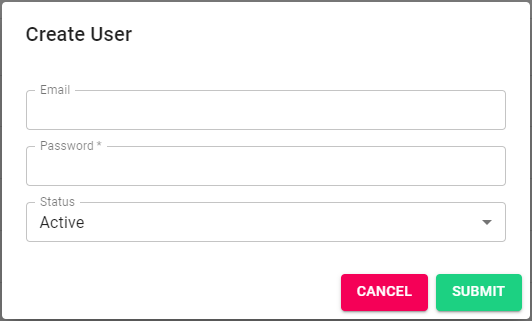
Set up the user accounts for the admin login to your site. All users will have unrestricted access to your AuctionSnap account.